Where Does My Workday Go? Building TimeLens, a Private Offline Time Tracker
I wanted a better answer than guessing where my computer time goes, so I built a Windows app that tracks it privately. What it does, what I learned and why privacy came first.
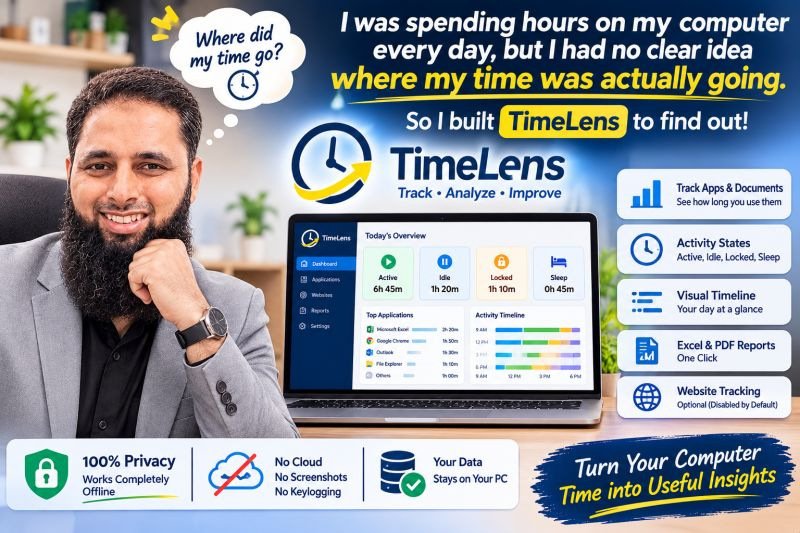
The visual I shared with the original LinkedIn post.
The end-of-day mystery
You have been busy for hours, but you still wonder where the day went. I wanted a real answer, so I started building TimeLens, a Windows application that tracks how I use my computer.
What it can do
- Track which applications and documents I use and for how long.
- Show time spent in Active, Idle, Locked and Sleep states.
- Display the whole day on a visual timeline.
- Generate Excel and PDF reports with one click.
- Track website usage, optionally (off by default).
Privacy came first
- It works completely offline.
- No cloud. No screenshots. No keystroke logging.
- All data stays in a local database on the computer.
There is also a small rule-based chat assistant: type "open my latest PDF" or "show my most used folders" and it handles the request. It is not AI-powered, and it is deliberately restricted from running command prompts or scripts.
What building it taught me
I'm still learning software development, and this project pushed me beyond writing code:
- An app can work perfectly in testing and behave differently in real use. I had to track down a hang that only appeared when switching between windows.
- Tracking time sounds simple, but sleep, shutdown and locked screens need careful thinking.
What's next
I plan to share demos of my projects on a YouTube channel so people can see how these applications actually work, not just read about them. One question for you: if you could see exactly where your computer time goes, what would you want to learn about your work habits?
I first shared this on LinkedIn. If you have a similar problem in your own team, connect with me on LinkedIn and let's talk.
Enjoyed this post?
Follow my journey from finance ledgers to one-click automation.